
Chrome extension
A screenshot extension for Chrome that captures the whole page
DownloadFullPage adds a capture button, a right-click menu and keyboard shortcuts to Chrome. Here’s what it can do, which permissions it uses and how it compares with Chrome’s built-in options.
Launch statusBeing prepared for the Chrome Web Store. The install button will link to the store as soon as the listing is approved.
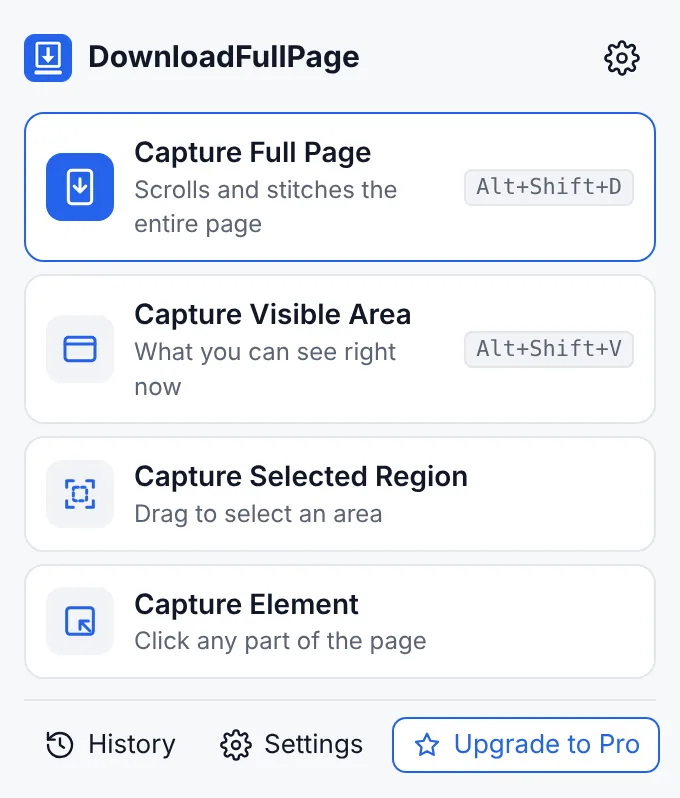
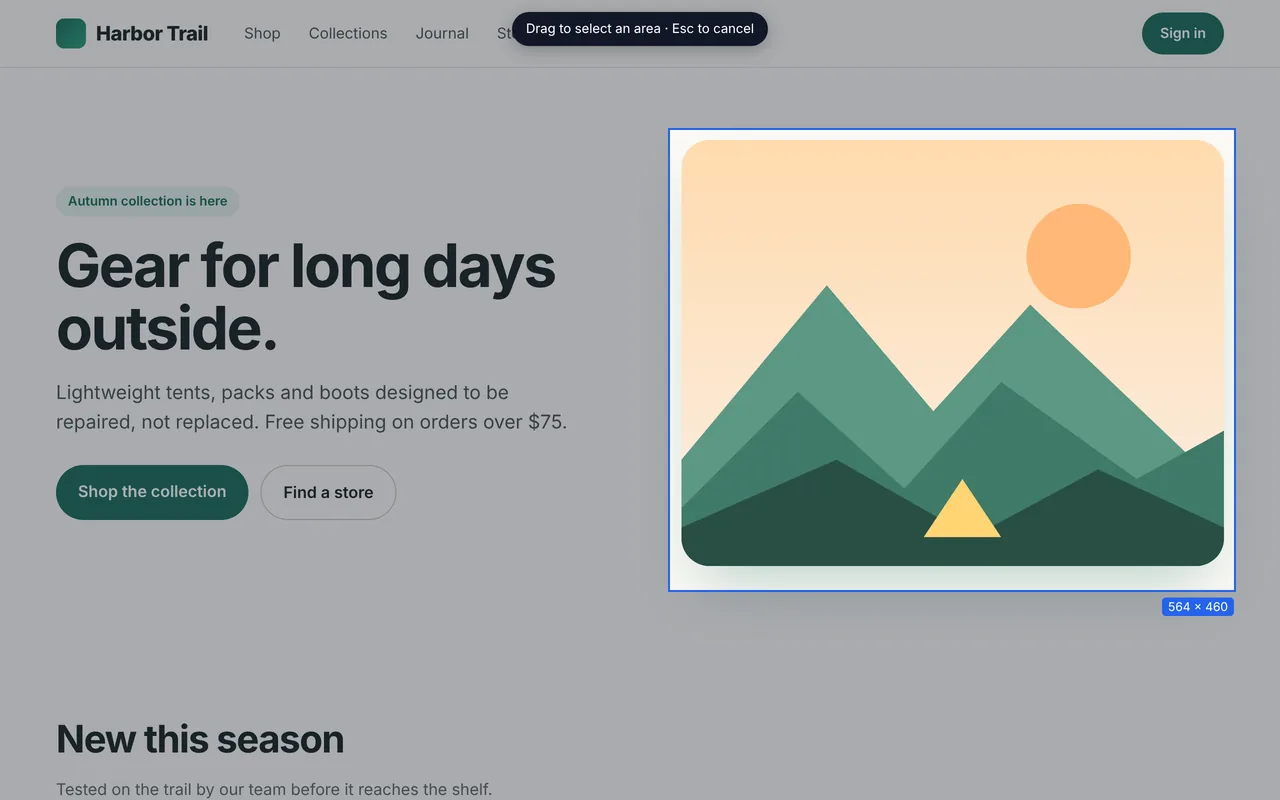
Four capture modes
- Full page — scrolls and stitches the entire page.
- Visible area — exactly what’s on screen.
- Selected region — drag a box on the visible page.
- Element — click a card, table, chart or section; tall elements are captured in full.
Start them from the toolbar popup, the right-click menu, or shortcuts (Alt+Shift+D full page, Alt+Shift+V visible area, Alt+Shift+Y history).
Extension vs Chrome’s built-in screenshot tools
Chrome’s Developer Tools can save a full size screenshot, and Chrome can print a page to PDF. Both are free and useful. Here is how they differ from DownloadFullPage:
| Aspect | DownloadFullPage | DevTools “Capture full size screenshot” |
|---|---|---|
| Start a capture | One click or shortcut | Open DevTools › Command Menu › type the command |
| Modes | Full page, visible, region, element | Full size, area, node, visible |
| Fixed headers repeated? | Shown once | Page is rendered at full height; fixed elements appear where the layout puts them |
| Inner scrolling panels (web apps) | Detected and captured | Not scrolled |
| Formats | PNG, JPG, PDF, clipboard | PNG |
| Editing, blur, history | Built in | None |
If you only need an occasional PNG and are comfortable with DevTools, the built-in command works well. If you take screenshots regularly, need PDF/JPG, or want to annotate and keep a history, the extension saves time.
Permissions, explained
DownloadFullPage asks for the minimum Chrome needs to take a screenshot. It requests no access to websites at install; page access comes from Chrome’s activeTab permission, which applies only to the tab you’re on, only after you click the extension, the menu or a shortcut.
activeTab— capture the current tab after you start a capturescripting— run the bundled capture script that scrolls and restores the pagestorageandunlimitedStorage— settings and your local screenshot historydownloads— save your filescontextMenus— the right-click capture items
There is no analytics, no remote code and no data sent to servers. Read the privacy policy.
Install
DownloadFullPage is being prepared for the chrome web store. Once it is approved, the install buttons on this site will link directly to the listing.
Questions
How is DownloadFullPage different from Chrome’s built-in screenshot tools?
Chrome can capture a full size screenshot from Developer Tools (Command Menu › “Capture full size screenshot”), which saves a PNG without editing. DownloadFullPage adds one-click capture from the toolbar, region and element modes, fixed-header handling, PDF and JPG export, an annotation editor with blur, and a searchable history. Full comparison: extension vs built-in tools.
Which browsers are supported?
DownloadFullPage is built for desktop Google Chrome 116 or later on Windows, macOS, Linux and ChromeOS. Support for other browsers has not been tested or announced.
Are there keyboard shortcuts?
Yes: Alt+Shift+D captures the full page, Alt+Shift+V captures the visible area and Alt+Shift+Y opens your screenshot history. On a Mac, Alt is the Option key. You can change them at chrome://extensions/shortcuts.
Why can’t I capture some pages?
Chrome does not allow extensions to capture its own pages (chrome:// pages, the New Tab page), the Chrome Web Store, or other extensions’ pages. On those pages the capture buttons are disabled and DownloadFullPage explains why.
Does DownloadFullPage track my browsing?
No. The extension has no analytics or tracking and does not read your browsing history. It only accesses a page after you start a capture on it, and it does not send data to any server.
Start capturing full webpages for free
Full page, visible area, region and element screenshots — with an editor and PNG, JPG and PDF downloads. No account needed.
Being prepared for the Chrome Web Store.