
Features
Every DownloadFullPage feature, explained
This page lists everything the extension does today (version 1.0.0). Features marked Free cost nothing. Planned Pro features are listed separately at the bottom and are clearly marked as not yet available.
Free
Four capture modes
Start any mode from the toolbar popup, the right-click menu, or a keyboard shortcut.
Full page screenshot
Scrolls the page for you and stitches every section into one tall image — from the header to the footer.
Learn more about Full page screenshotVisible area screenshot
Captures exactly what is on your screen right now, at your display’s full resolution.
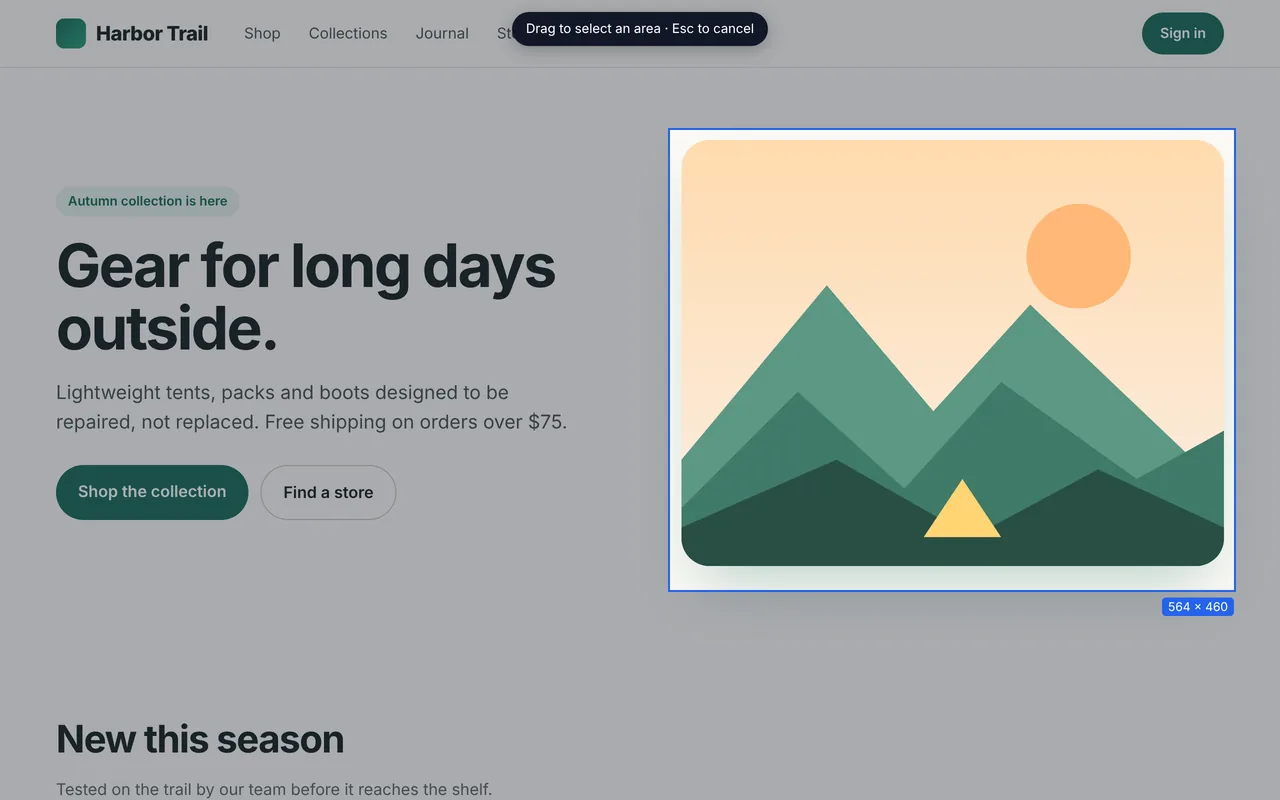
Selected region
Drag a box around any part of the visible page to capture just that area.
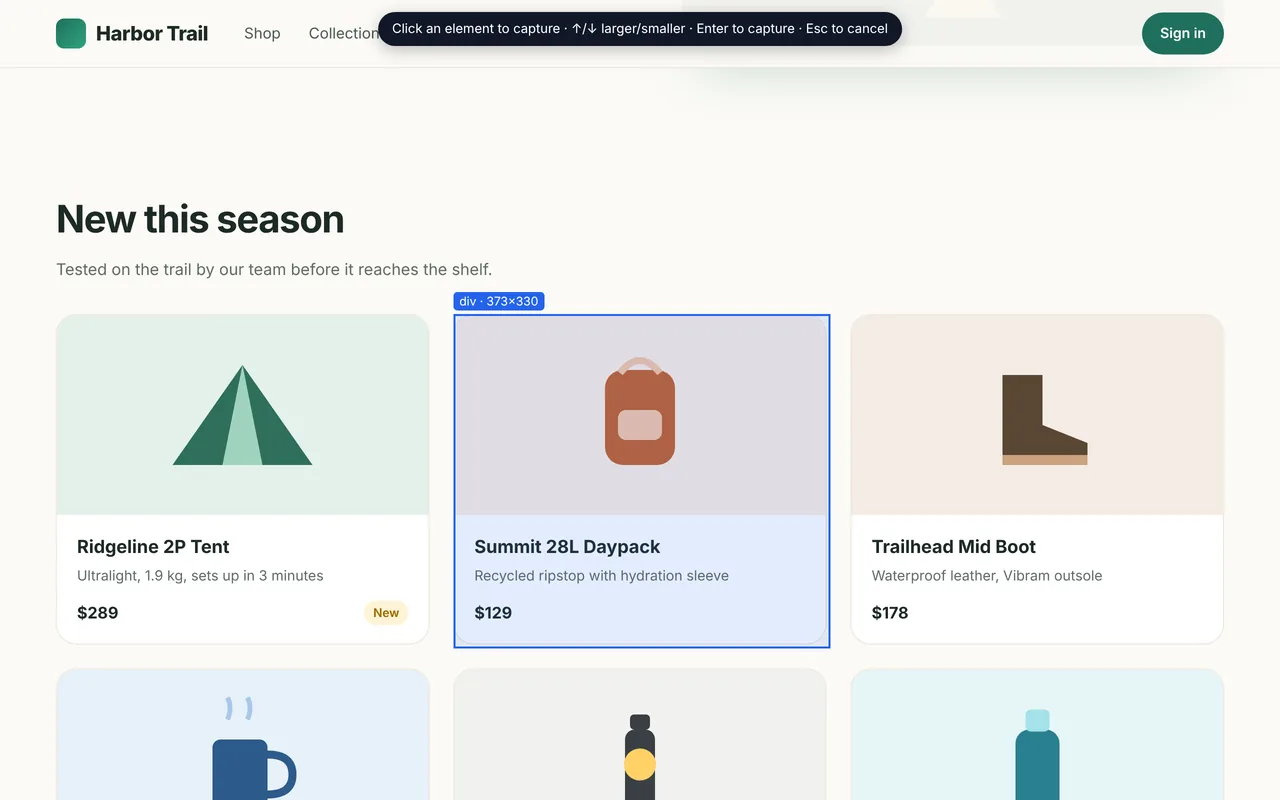
Element screenshot
Hover and click a product card, chart, table or article. Elements taller than the screen are captured in full.
Free
Capture quality on long pages
Before capturing, DownloadFullPage prepares the page so the stitched image looks like the page you saw — then restores every change it made.
- Fixed headers appear once at the top instead of repeating down the page
- Sticky menus are shown once, in their natural position
- Cookie banners and chat bubbles pinned to the bottom of the screen are kept out of the middle of the image
- Lazy-loaded images are given time to load before capture
- Pages that scroll inside an inner panel (common in web apps) are detected and captured in full
- Sharp results on high-resolution (Retina/HiDPI) displays
- Very tall pages are saved in parts automatically instead of being cut off
- Cancel any time with the popup or the Esc key — the page scrolls back to where you were
Quality modes
- Original resolution (default)
- Keeps every device pixel — on a Retina/HiDPI screen a 1280-pixel-wide page becomes a 2560-pixel-wide image.
- High
- Up to 2× the page’s CSS size.
- Standard
- 1× the page’s CSS size, for smaller files.
Images are never artificially upscaled. On a standard (1×) display all three modes produce the same result.
Safeguards
- Maximum page height for endless-scroll pages: 40,000 CSS pixels by default, adjustable from 2,000 to 300,000.
- Output taller than browser image limits is split into parts automatically; extremely wide pages are scaled to fit.
- If anything interrupts a capture, the page is restored automatically.
Free
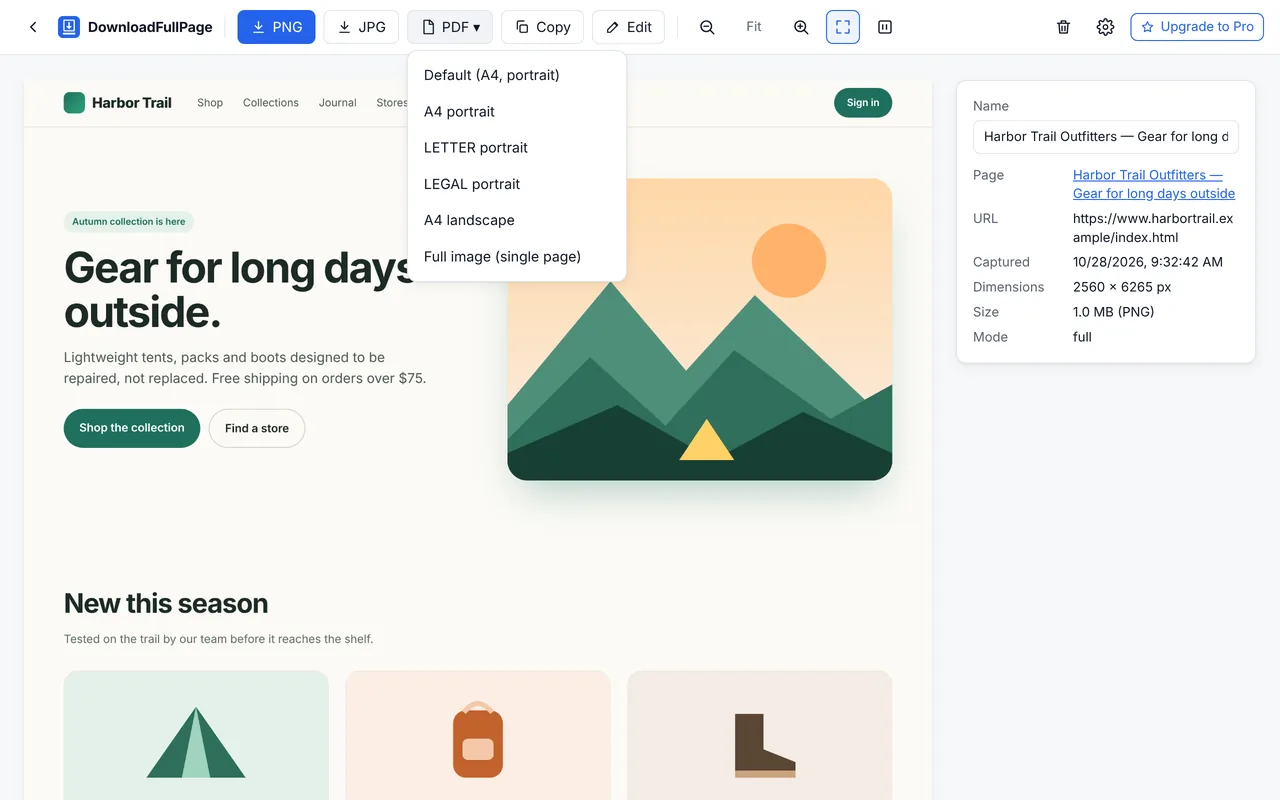
Download as PNG, JPG or PDF
Unlimited exports with no watermark.
- PNG
- Lossless and pixel-perfect — best for text and interfaces.
- JPG
- Smaller files with a quality slider from 50% to 100%.
- A4, Letter or Legal, portrait or landscape, or a single long page.
- Clipboard
- Copy a screenshot and paste it straight into a document or chat.
- File names
- Automatic names from the website and date, or your own pattern with {domain}, {title}, {date} and {time}.
- Stamps
- Optionally print the page URL and capture date/time on exports.
Crop
Keep only the part that matters.
Resize
Set exact pixel dimensions, with or without locked aspect ratio.
Rotate
Turn the image 90° left or right.
Text
Add labels and notes in any color and size.
Arrows and lines
Point at details; hold Shift for straight 45° angles.
Rectangles and circles
Outline or fill an area; hold Shift for squares and circles.
Highlighter
Mark text like a highlighter pen.
Blur
Soften private information so it can’t be read.
Pixelate
Replace sensitive content with coarse blocks.
Freehand
Draw or circle anything by hand.
Select and move
Reposition or delete annotations after drawing them.
Undo, redo and reset
Step back through edits or return to the original.
Free
History and collections
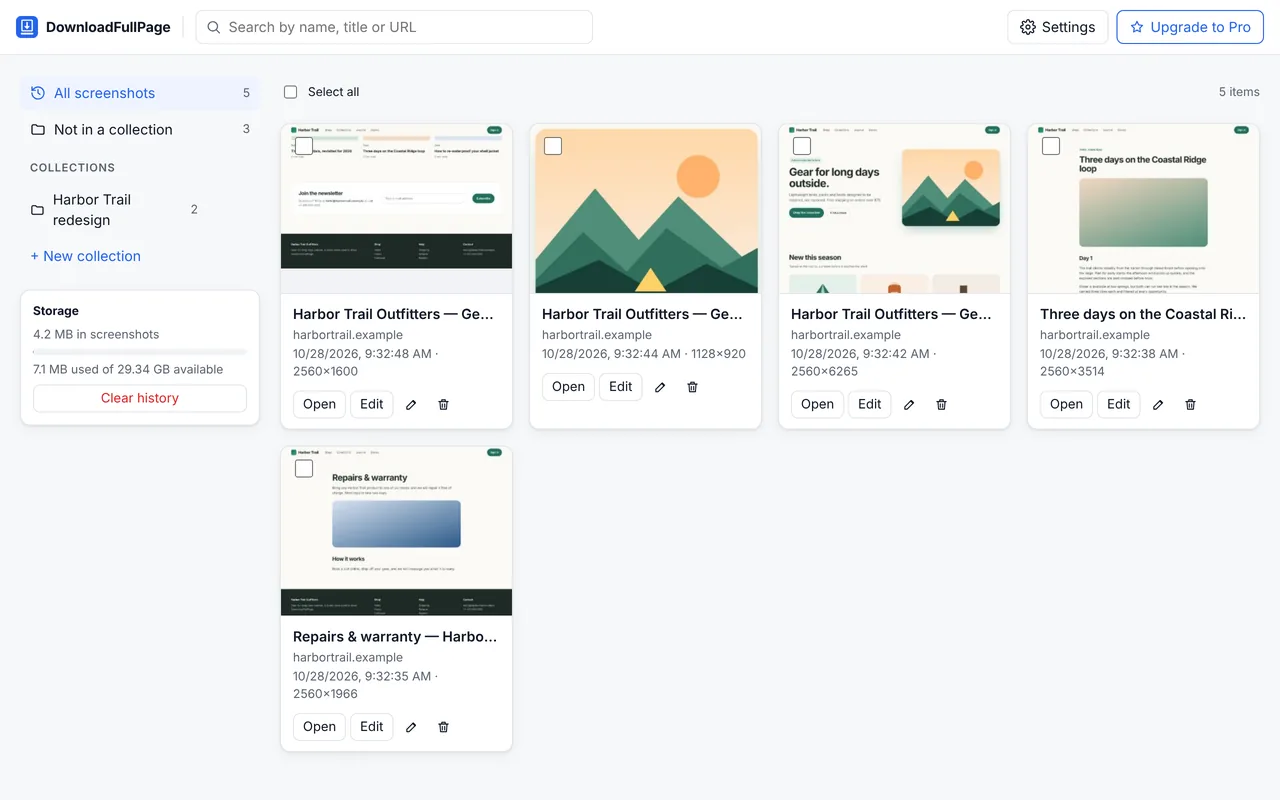
Every capture is saved in your browser so you can find it again later.
- Thumbnails with site, date and pixel size
- Search by name, page title or URL
- Rename, delete and bulk delete
- Collections (folders) to organize projects
- Storage usage meter and “Clear history”
- Optional automatic deletion after 7, 30, 90 or 365 days
- History can be switched off completely
Free
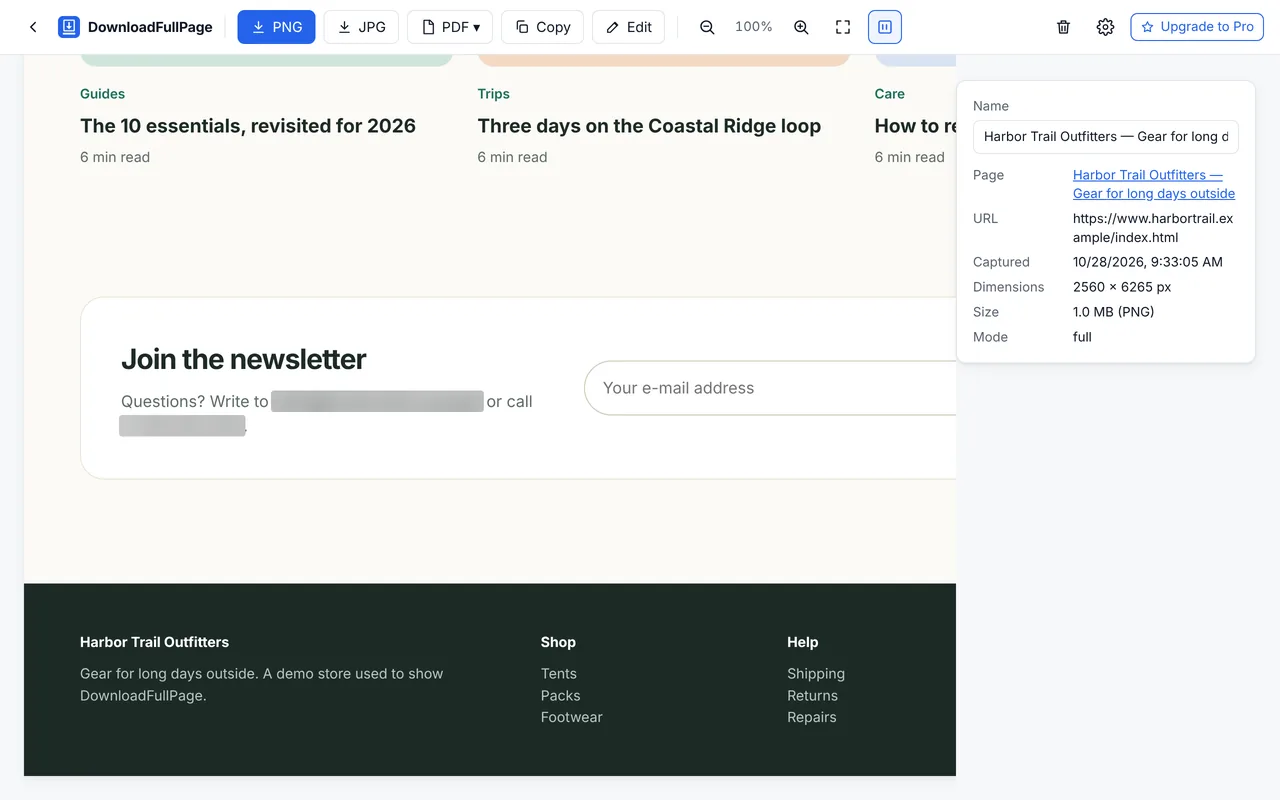
Privacy masking while you capture
Turn on masking in Settings and DownloadFullPage covers matching content on the page during capture, then removes the covers.
- E-mail addresses
- Phone numbers
- Password fields
Matching runs entirely on your computer. Pattern matching can miss unusual formats, so review screenshots before sharing — and use the editor’s blur or pixelate tool for anything else.
Free
Settings
- Default image format, JPG quality, PDF paper size and orientation
- Ask where to save (“Save As”) and automatic download after capture
- File name pattern with
{domain}{title}{date}{time}tokens - URL and date/time stamps on exports
- Hide fixed elements after the first screen; load lazy images first
- Maximum page height; capture quality mode
- History on/off and automatic clean-up
- Light, dark or system theme
Keyboard shortcuts
| Alt+Shift+D | Capture full page |
| Alt+Shift+V | Capture visible area |
| Alt+Shift+Y | Open screenshot history |
On a Mac, Alt is the Option key. Change shortcuts at chrome://extensions/shortcuts. The right-click menu offers “Capture full page”, “Capture visible area”, “Select element to capture” and “Select region to capture”.
Known limitations
We’d rather you know these up front.
- Chrome does not allow extensions to capture browser pages such as chrome:// pages and the New Tab page, the Chrome Web Store, or pages belonging to other extensions.
- Pages that change while scrolling — endless feeds, maps, animated canvases — may not stitch perfectly. Endless feeds are captured up to a maximum height you can set (40,000 CSS pixels by default).
- Content inside frames embedded from other websites is captured as it appears on screen but cannot be scrolled separately.
- Selected-region capture works within the part of the page currently visible on screen. Use element or full-page capture for larger areas.
- Keep the tab visible while a full-page capture runs; switching tabs stops the capture.
Planned — not yet available
Planned Pro features ($9 one-time)
These tools are in development. They are not part of the free extension and cannot be purchased yet.
Batch screenshots
Paste a list of URLs and capture them in one run, then download a ZIP.
Smart PDF splitting
Page breaks placed in whitespace instead of through lines of text.
Screenshot comparison
Side-by-side, slider and difference views for two captures.
Custom branding
Your logo, watermark, footer and browser frame on exports.
Advanced exports
Combine screenshots into one PDF, presets and bulk ZIP export from history.
Start capturing full webpages for free
Full page, visible area, region and element screenshots — with an editor and PNG, JPG and PDF downloads. No account needed.
Being prepared for the Chrome Web Store.