
Free · No watermark · No account
Free full page screenshots in Chrome — no subscription, no watermark
DownloadFullPage captures an entire webpage from top to bottom and saves it as PNG, JPG or PDF. The core features are free to use, with no capture limits.
Launch statusBeing prepared for the Chrome Web Store. The install button will link to the store as soon as the listing is approved.
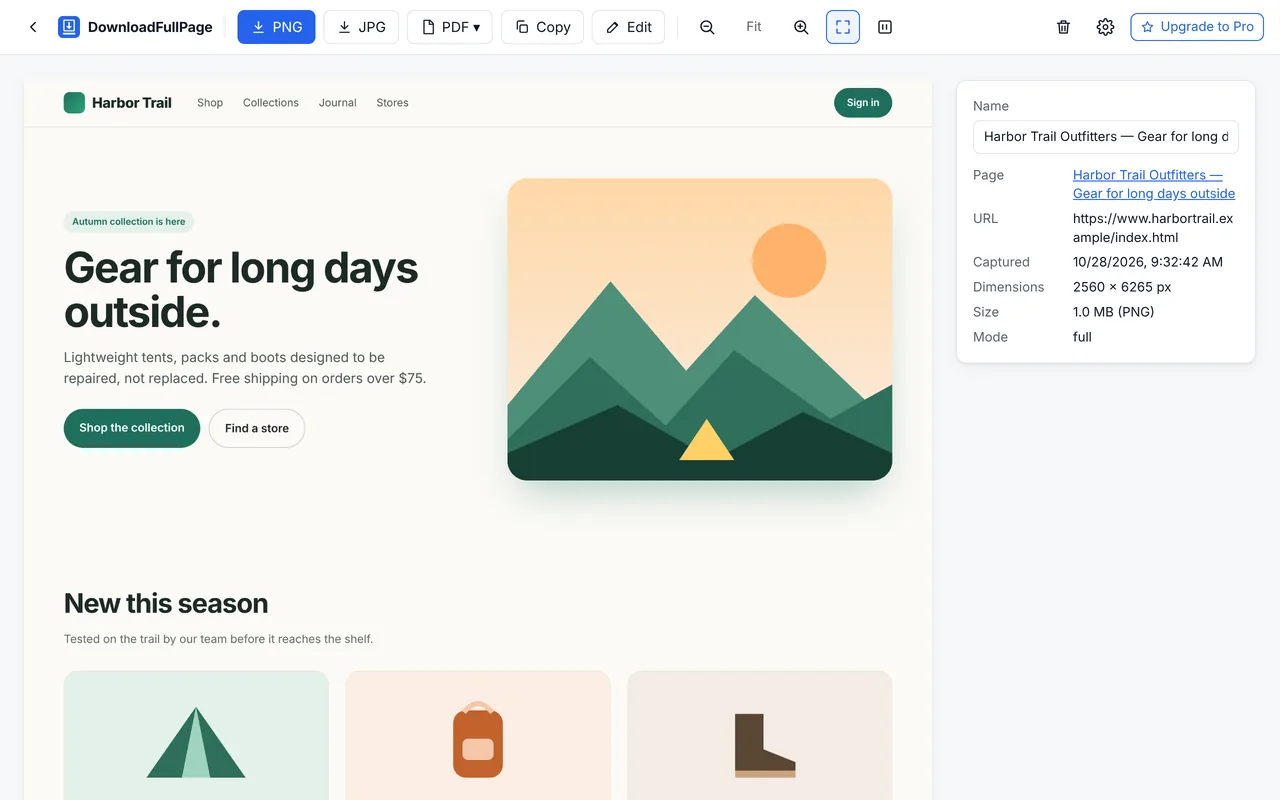
What’s free in DownloadFullPage
| Feature | Free? |
|---|---|
| Full page, visible area, region and element screenshots | Yes — unlimited |
| PNG, JPG and PDF downloads | Yes — no watermark |
| Editor: crop, text, arrows, shapes, highlight, blur, pixelate | Yes |
| Copy to clipboard, custom file names, URL/date stamps | Yes |
| History, search and collections | Yes |
| Batch capture, comparison, branding, smart PDF (planned Pro) | No — planned $9 one-time upgrade, not yet available |
How to take a free full page screenshot
- Open the page in Chrome and wait for it to finish loading.
- Click the DownloadFullPage icon and choose Capture Full Page, or press Alt+Shift+D.
- Keep the tab visible while the progress bar fills. The page scrolls by itself.
- In the preview, click PNG, JPG or PDF.
That’s it — no upload, no sign-in. For a walkthrough with screenshots, see How it works.
Free ways to capture a whole webpage in Chrome
There is more than one free option. Here is an honest comparison so you can pick the right one:
| Method | Good for | Trade-offs |
|---|---|---|
| DownloadFullPage (extension) | One-click capture, region/element modes, editing, PDF/JPG, history | Needs a one-time install; can’t run on Chrome’s own pages |
| Chrome DevTools — Command Menu › “Capture full size screenshot” | Occasional captures without installing anything | Several steps; PNG only; no editor; lazy-loaded images may be missing and elements sized to the screen can stretch |
| Chrome Print › Save as PDF | Text-searchable PDF of an article | Uses the print layout, which often differs from what you see on screen |
Step-by-step instructions for each method are in our guide How to take a full page screenshot in Chrome for free.
Why is it free?
Screenshots are processed on your own computer, so the free version has no server costs to pass on. The planned Pro upgrade will fund advanced tools for professionals; the features that are free today are not being moved behind it.
Questions
Is DownloadFullPage free?
Yes. All core features are free: full page, visible area, region and element screenshots, the editor, PNG, JPG and PDF downloads, and screenshot history. There are no capture limits and no watermarks. An optional $9 one-time Pro upgrade with extra tools is planned but not available yet — see pricing.
Does DownloadFullPage add a watermark?
No. Free screenshots and exports have no watermark. You can optionally add the page URL and capture date to exports in Settings.
Do I need a subscription?
No. Core features are free with no subscription. The planned Pro upgrade is a one-time $9 payment for lifetime access to the Pro features included at purchase — not a monthly or yearly plan.
Do I need an account?
No. DownloadFullPage works without an account, sign-up or login.
How can I capture a long webpage as one image?
Use Capture Full Page. Pages up to about 16,000 pixels tall (after accounting for screen resolution) are saved as a single image; taller pages are saved in several parts automatically to stay within browser image limits. PDF export combines all parts into one document.
Start capturing full webpages for free
Full page, visible area, region and element screenshots — with an editor and PNG, JPG and PDF downloads. No account needed.
Being prepared for the Chrome Web Store.