
Guide
How to take a full page screenshot with DownloadFullPage
From install to download in four steps — plus what the extension does behind the scenes while it captures a long page.
Step 1
Install the extension and pin it
Install DownloadFullPage from the Chrome Web Store (the listing is being prepared — the button on this site will link to it once approved). Then click the puzzle-piece icon in Chrome’s toolbar and pin DownloadFullPage so it is always one click away.
No account or sign-up. No website access is requested at install — the extension only touches a page when you start a capture on it.
Step 2 & 3
Open the page and choose a capture mode
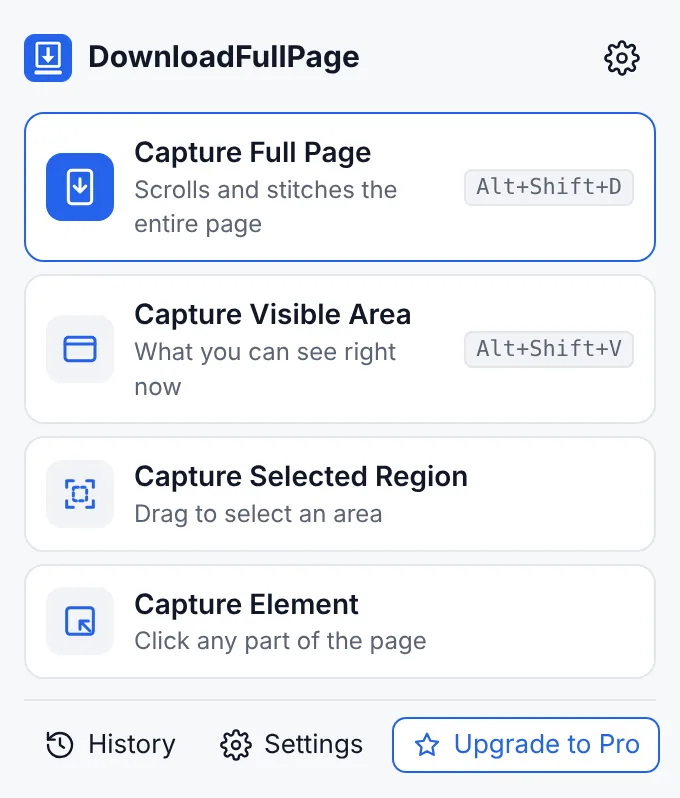
- Capture Full Page — the whole page, top to bottom.
- Capture Visible Area — just what’s on screen.
- Capture Selected Region — drag a box on the page.
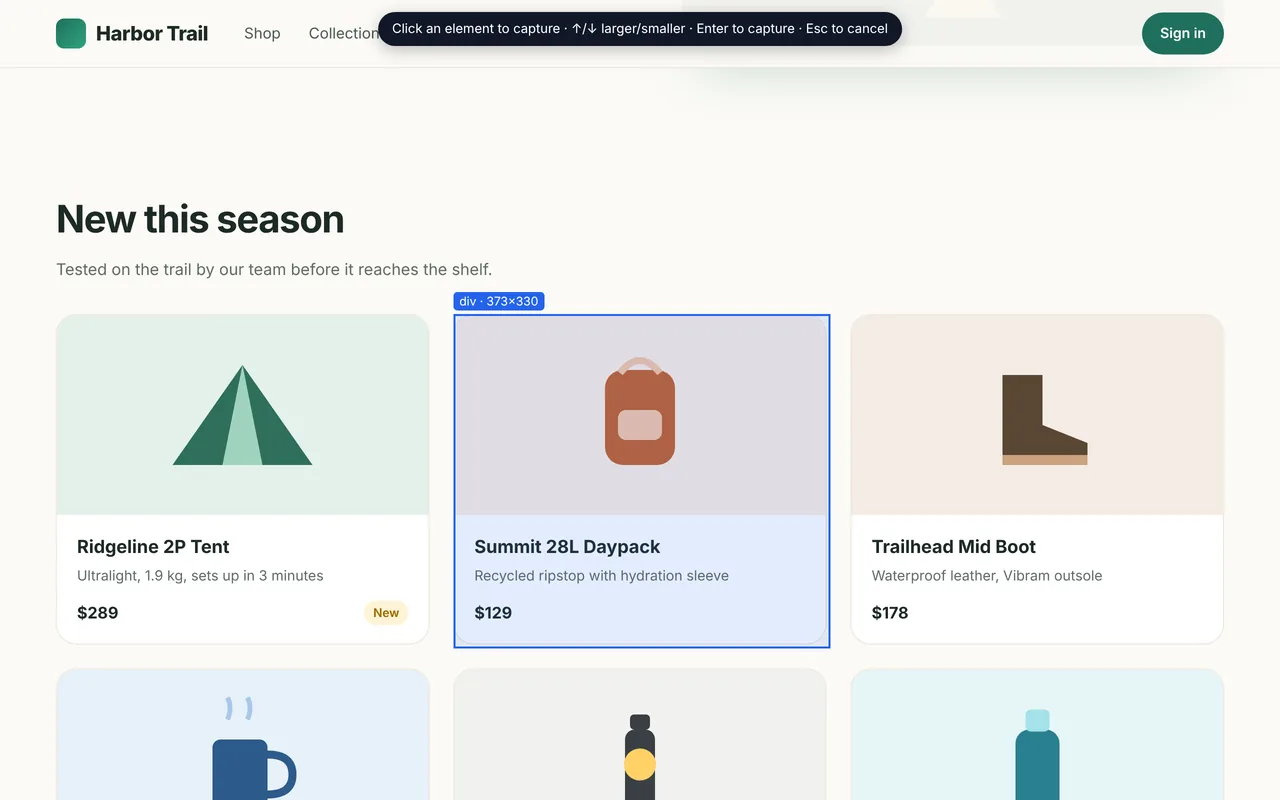
- Capture Element — click a section, card, chart or table.
During a full page capture the popup shows progress. Keep the tab visible; press Esc or Cancel to stop.
Step 4
Preview, edit and download
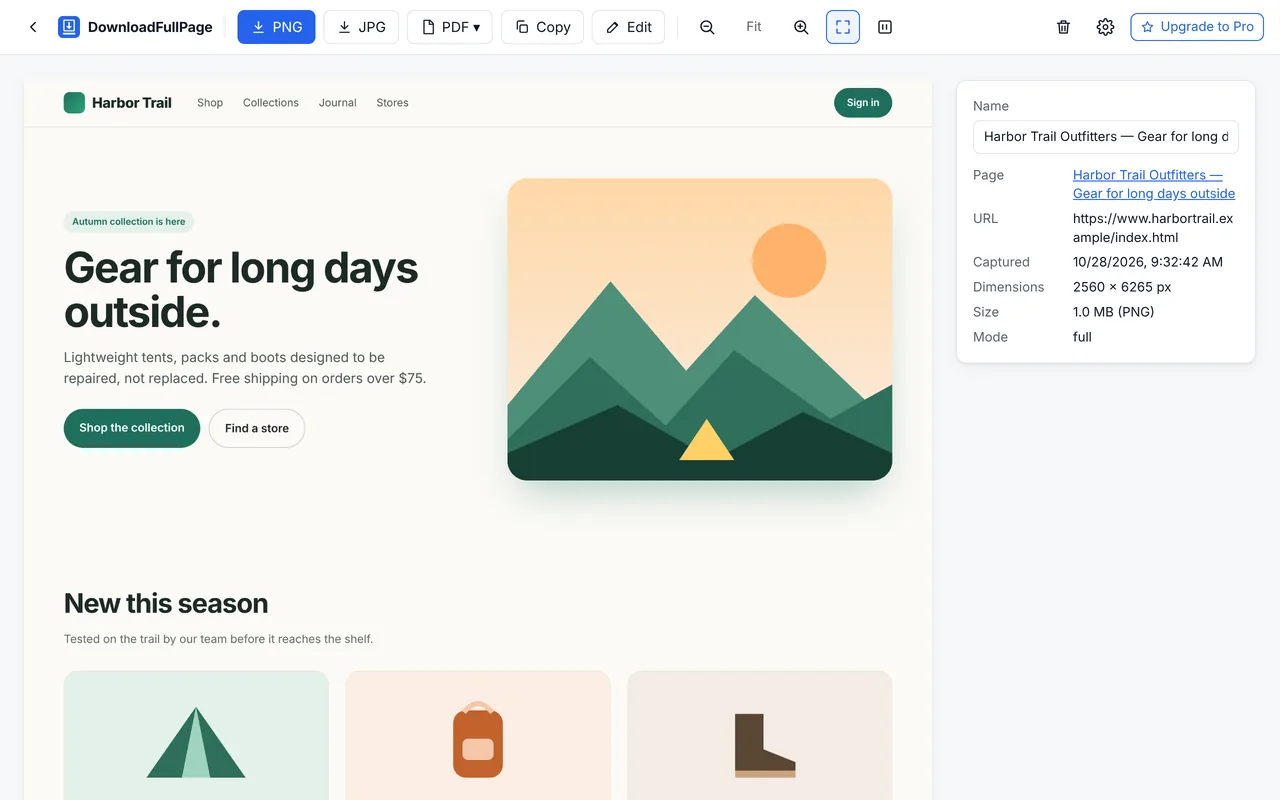
Your screenshot opens in a new tab. Zoom in, rename it, then download PNG, JPG or PDF, or copy it to the clipboard. Click Edit to crop, annotate or blur first.
Every capture is also saved to your local history, so you can come back to it later.
Three ways to start a capture
- Toolbar popup — click the icon and pick a mode.
- Right-click menu — right-click anywhere on the page and choose “Capture full page”, “Capture visible area”, “Select element to capture” or “Select region to capture”.
- Keyboard shortcuts — Alt+Shift+D capture full page; Alt+Shift+V capture visible area; Alt+Shift+Y open screenshot history. Change them at
chrome://extensions/shortcuts.
What happens during a full page capture?
Chrome lets extensions capture only the visible part of a tab, so DownloadFullPage builds a full page screenshot from several captures:
- Find the scrolling area. Usually the whole page; in many web apps it is an inner panel, which is detected automatically.
- Prepare the page. Scrollbars are hidden, smooth scrolling is turned off, sticky bars are shown once in place, and lazy-loaded images get a chance to load. Optional privacy masks are placed.
- Capture section by section. The page is scrolled one screen at a time. Each step waits until scrolling has settled and visible images have loaded — not a fixed delay. After the first screen, fixed headers are hidden so they don’t repeat.
- Stitch. Each section is placed at the exact position the page reached, at your screen’s real resolution, into one image (or several parts for very tall pages).
- Restore. Every temporary change is undone and the page scrolls back to where you were — even if you cancel.
All of this runs on your computer. Nothing is uploaded. See scrolling screenshots for tips on tricky pages.
Pages that can’t be captured
Chrome blocks extensions on its own pages (like chrome://settings and the New Tab page), on the Chrome Web Store, and on other extensions’ pages. The capture buttons are disabled there with an explanation. Regular websites and web apps can be captured.
Need more detail? Read the documentation or the FAQ.
Start capturing full webpages for free
Full page, visible area, region and element screenshots — with an editor and PNG, JPG and PDF downloads. No account needed.
Being prepared for the Chrome Web Store.