
Free editor
Free screenshot editor for Chrome: annotate, highlight and blur
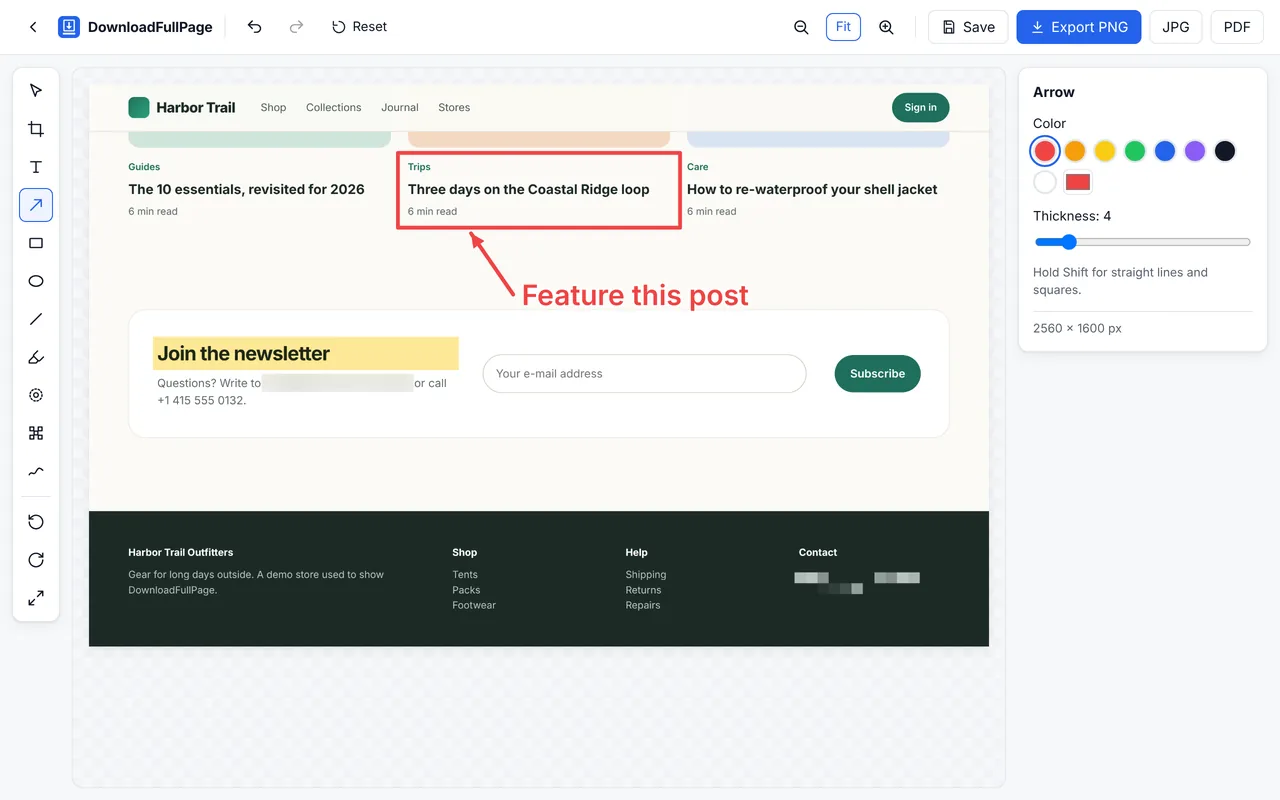
Every capture can be opened in DownloadFullPage’s built-in editor. Crop and resize, add arrows and notes, highlight text, and blur or pixelate private information — then download.
Launch statusBeing prepared for the Chrome Web Store. The install button will link to the store as soon as the listing is approved.
Tools
| Tool | What it does | Shortcut |
|---|---|---|
| Crop | Keep only the part that matters. | C |
| Resize | Set exact pixel dimensions, with or without locked aspect ratio. | — |
| Rotate | Turn the image 90° left or right. | — |
| Text | Add labels and notes in any color and size. | T |
| Arrows and lines | Point at details; hold Shift for straight 45° angles. | A / L |
| Rectangles and circles | Outline or fill an area; hold Shift for squares and circles. | R / E |
| Highlighter | Mark text like a highlighter pen. | H |
| Blur | Soften private information so it can’t be read. | B |
| Pixelate | Replace sensitive content with coarse blocks. | P |
| Freehand | Draw or circle anything by hand. | D |
| Select and move | Reposition or delete annotations after drawing them. | V |
| Undo, redo and reset | Step back through edits or return to the original. | Ctrl+Z / Ctrl+Shift+Z |
On a Mac use ⌘ instead of Ctrl. Press Delete to remove a selected annotation, Enter to apply a crop, and Esc to cancel.
Blur vs pixelate
Both hide information. Blur softens an area and looks smooth; pixelate replaces it with coarse blocks and is easier to recognize as deliberately hidden. Either way, the effect is applied permanently to exported files. For automatic masking of e-mail addresses, phone numbers and password fields during capture, turn on privacy masking in Settings.
Saving your work
- Export downloads the edited image as PNG, JPG or PDF.
- Save adds the edited version to your history as a new screenshot — the original stays untouched.
- Reset returns to the original capture.
Very tall captures that were saved in several parts are edited one part at a time.
Questions
How do I edit a screenshot after capturing it?
Click Edit in the preview. The editor lets you crop, resize and rotate, add text, arrows, lines, rectangles and circles, highlight, blur or pixelate private details, draw freehand, and undo or redo. Then export as PNG, JPG or PDF or save a copy to your history. See the screenshot editor.
Which file formats are supported?
PNG (lossless), JPG (adjustable quality from 50% to 100%) and PDF (A4, Letter or Legal in portrait or landscape, or a single long page). You can also copy a screenshot to the clipboard.
Start capturing full webpages for free
Full page, visible area, region and element screenshots — with an editor and PNG, JPG and PDF downloads. No account needed.
Being prepared for the Chrome Web Store.