
Quick answer: the fastest free way is a screenshot extension such as DownloadFullPage — click its icon (or press Alt+Shift+D) and it scrolls, stitches and saves the whole page. Without installing anything, you can use Chrome DevTools’ “Capture full size screenshot” command, or Print › Save as PDF for a text-based PDF.
Chrome’s toolbar doesn’t have a full page screenshot button, and your operating system’s screenshot tool only captures what is on screen. Below are three free methods that capture the entire page, with the strengths and weaknesses of each.
Method 1: Use a free extension (one click)
- Install DownloadFullPage and pin it to the toolbar.
- Open the page and let it finish loading. Close any pop-up you don’t want in the image.
- Click the DownloadFullPage icon › Capture Full Page, or press Alt+Shift+D.
- Keep the tab visible while it scrolls. A preview opens when it’s done.
- Click PNG, JPG or PDF to download.
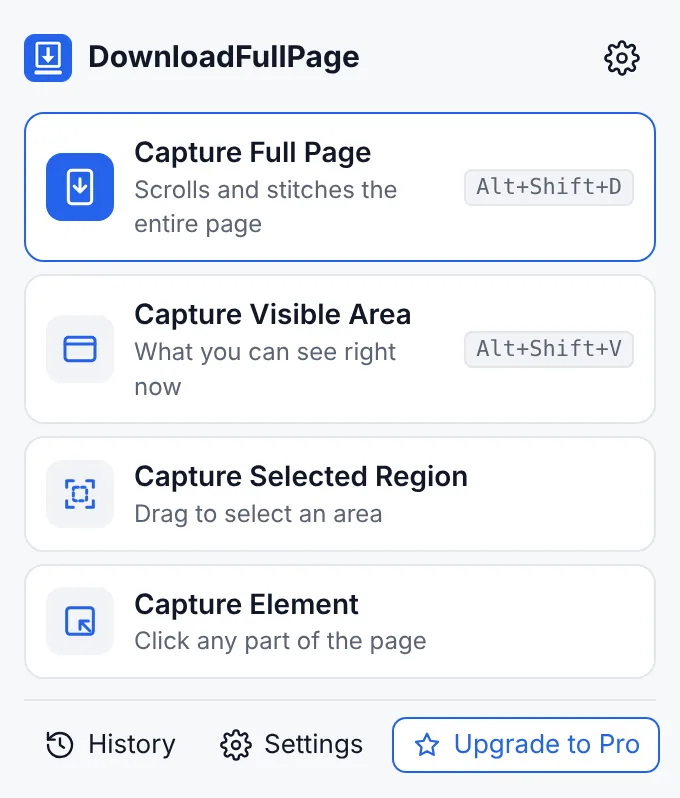
Why choose this: it’s the quickest for repeated use, it handles headers that would otherwise repeat, it captures pages that scroll inside an inner panel, and you can annotate and blur before sharing. Everything above is free, with no watermark.
Method 2: Chrome DevTools (no install)
- Open the page and press Ctrl+Shift+I (Windows/Linux) or Cmd+Option+I (Mac) to open Developer Tools.
- Open the Command Menu with Ctrl+Shift+P or Cmd+Shift+P.
- Type
screenshotand choose Capture full size screenshot. - Chrome saves a PNG to your downloads folder.
Good to know: DevTools renders the page at its full height in one go. That works well on simple pages, but images that only load when scrolled into view may still be blank, sections sized to the screen height can stretch, and content inside scrolling panels isn’t expanded. There’s no editing, and the only format is PNG.
Method 3: Print › Save as PDF
- Press Ctrl+P (Windows/Linux) or Cmd+P (Mac).
- Set Destination to Save as PDF.
- Under More settings, turn on Background graphics for a closer match to the screen.
- Click Save.
The result has selectable text, but it uses the site’s print layout, which can look quite different from the screen — menus may disappear and columns can rearrange. It’s best for reading articles offline, not for showing how a page looks. Our guide to saving a webpage as PDF compares the two PDF approaches in detail.
Which method should you use?
| You want… | Use |
|---|---|
| A full page image in one click, regularly | Extension |
| To annotate, blur or crop before sharing | Extension |
| One quick PNG without installing anything | DevTools |
| A searchable, text-based PDF of an article | Print › Save as PDF |
| An exact visual record of a page as a PDF | Extension (PDF export) |
Tips for a clean result
- Scroll to the bottom once if the page loads content as you go, then capture.
- Dismiss cookie banners and newsletter pop-ups first.
- For a single section, use element capture instead of cropping a giant image.
- Use PNG for text and interfaces, JPG for photo-heavy pages where file size matters.
More on difficult pages in How to capture long webpages without missing content.
Written by the team behind DownloadFullPage, a free full page screenshot extension for Chrome developed by Digital Suvidha Pvt. Ltd.. Instructions were checked against DownloadFullPage 1.0.0 and current desktop Chrome.