
Quick answer: capture the page, click Edit, then use the tools on the left: crop (C), text (T), arrow (A), rectangle (R), highlight (H), blur (B) or pixelate (P). Undo with Ctrl+Z. Export as PNG, JPG or PDF when you’re done.
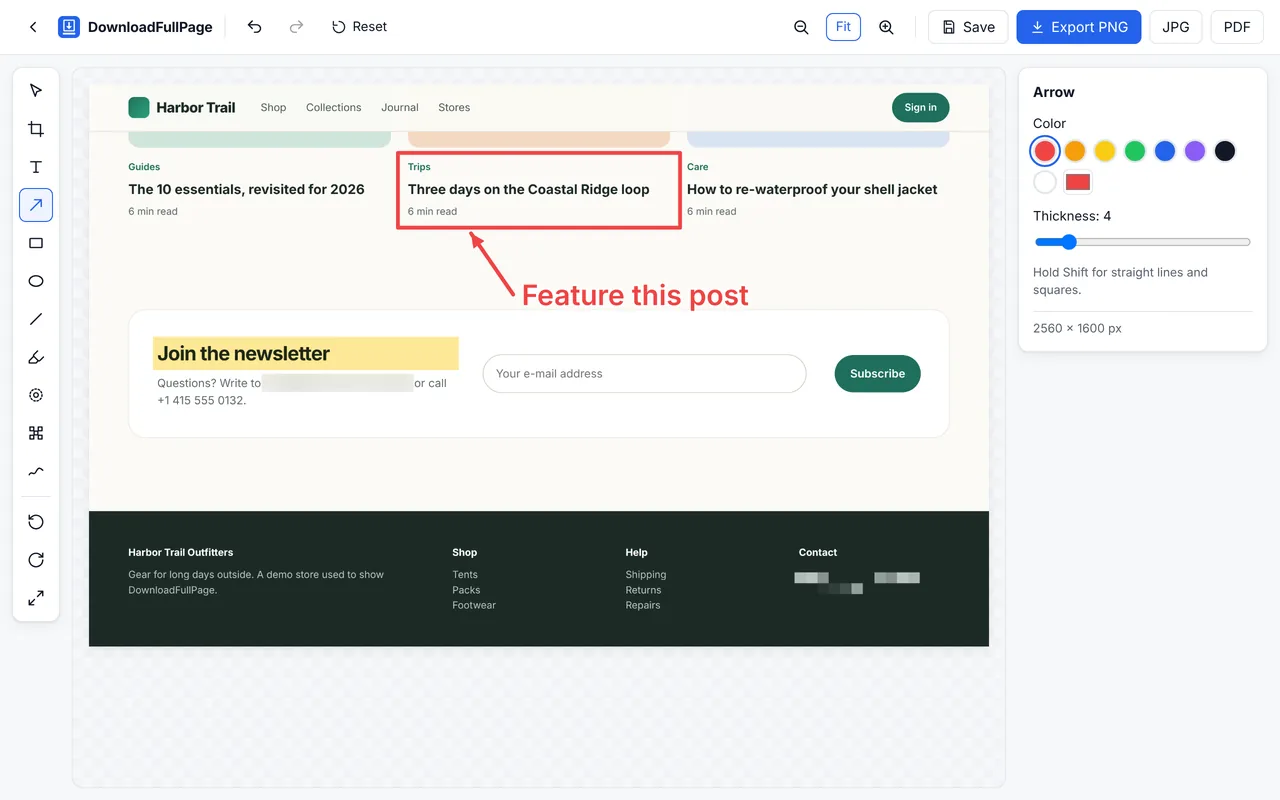
A simple annotation workflow
- Crop first. Remove everything that doesn’t help the reader. Fewer pixels, clearer message.
- Hide private data. Blur or pixelate names, e-mail addresses, order numbers and tokens before anything else, so you don’t forget.
- Mark the one thing that matters. A rectangle around it, or a highlight on text.
- Explain briefly. An arrow plus a two-to-four-word note (“Button misaligned”, “Use this headline”).
- Export in the format the recipient needs.
Tips for annotations people understand
- One color, one meaning. Red for problems, green for approvals, yellow for highlights.
- Don’t cover what you’re pointing at. Place arrows so their tip touches the edge of the target.
- Number multiple issues with short text labels (1, 2, 3) and list details in your message.
- Use thickness that survives scaling. Full page screenshots are often viewed zoomed out; increase stroke thickness for tall images.
- Hold Shift for straight arrows and lines, and perfect squares and circles.
Blur or pixelate?
Both make text unreadable in the exported file. Blur is softer and less distracting; pixelate is more obviously “redacted”. For large areas or anything legally sensitive, pixelate with a large block size — or crop the information out completely. Remember: once exported, the effect is part of the image; keep the original private.
Keep the original
In DownloadFullPage, Save stores the edited version as a new screenshot in your history, so the original capture stays untouched. Reset discards all edits.
See every tool on the screenshot editor page, or read how to screenshot a website for bug reports.
Written by the team behind DownloadFullPage, a free full page screenshot extension for Chrome developed by Digital Suvidha Pvt. Ltd.. Instructions were checked against DownloadFullPage 1.0.0 and current desktop Chrome.