
Quick answer: capture the full page (or the affected element), mark the problem with a box and a short note, blur any personal data, and add the URL, date, browser and steps to reproduce. DownloadFullPage can stamp the URL and date on the image automatically.
1. Choose the right capture
- Layout problems: full page, so developers see the bug in context.
- A broken component: element capture of that component.
- Something only visible at your screen size: visible area, plus your window size in the report.
2. Protect private data
Bug screenshots often contain customer names, e-mail addresses and order numbers. Turn on privacy masking in Settings to cover e-mail addresses, phone numbers and password fields during capture, then use blur or pixelate in the editor for anything else.
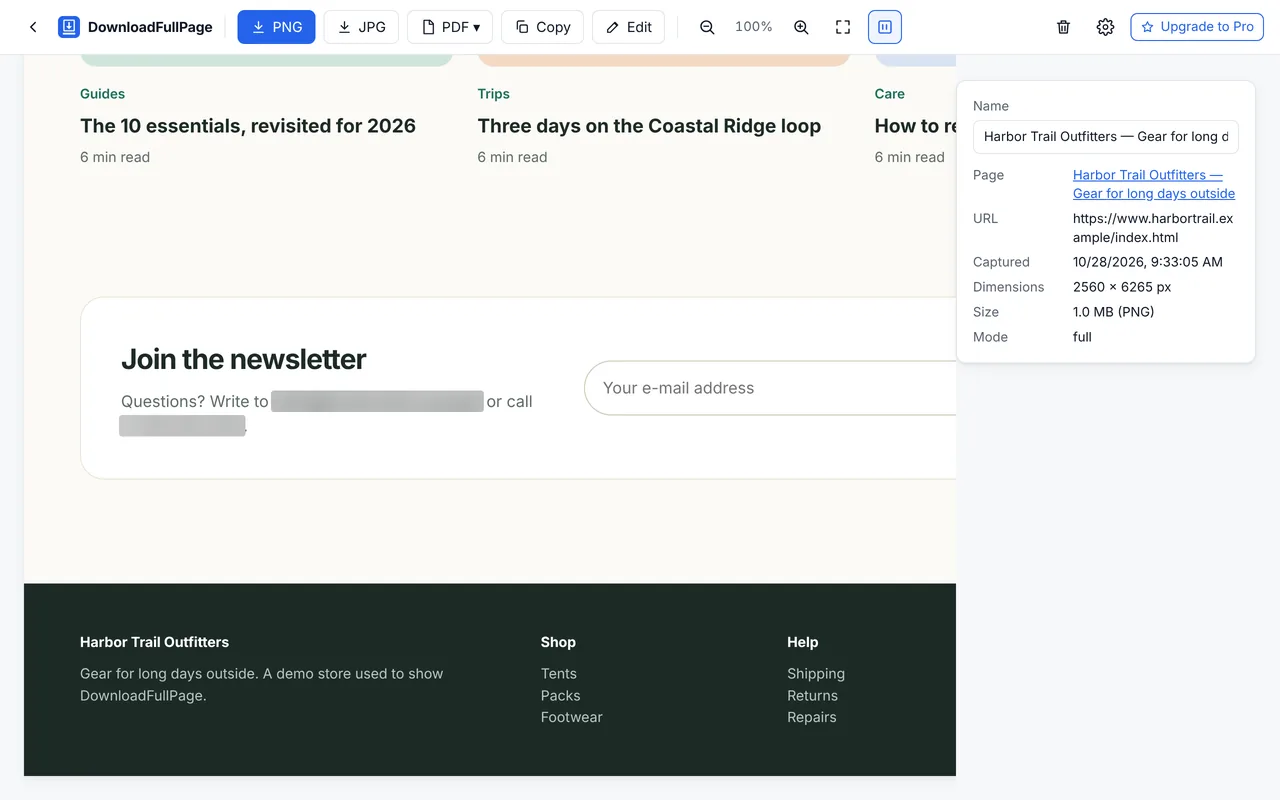
3. Annotate the problem
- Draw a red rectangle around the bug.
- Add an arrow and a short label: “Price overlaps button”.
- If there are several issues, number them and describe each in the ticket.
4. Add context automatically
Enable Stamp page URL and Stamp capture date/time in Settings. Every export then shows where and when the screenshot was taken. Use a file name pattern such as {project}-{domain}-{datetime} to keep attachments organized.
5. Bug report template
Title: [Component] — [what’s wrong] on [page]
URL: …
Browser / OS / window size: Chrome …, Windows/macOS …, 1440×900
Steps to reproduce: 1. … 2. … 3. …
Expected: …
Actual: … (see annotated screenshot)
Attachments: full page PNG, element PNG
6. Pick the right format
Use PNG for bug reports — compression artifacts in JPG can hide single-pixel issues. For long pages shared with non-technical stakeholders, a PDF is easier to open and print.
More: how to annotate screenshots and the screenshot editor.
Written by the team behind DownloadFullPage, a free full page screenshot extension for Chrome developed by Digital Suvidha Pvt. Ltd.. Instructions were checked against DownloadFullPage 1.0.0 and current desktop Chrome.