
Quick answer: a visible area screenshot captures only what fits on your screen; a full page screenshot captures the whole page, including everything you’d have to scroll to see. Use full page for records and reviews, visible area for quick context, and element or region capture when you only need one part.
The four capture modes compared
| Mode | Captures | Best for |
|---|---|---|
| Full page | Entire scrollable page | Archiving, design reviews, SEO audits, saving articles |
| Visible area | The current screen | Quick sharing, showing “what I see right now” |
| Region | A box you drag on the visible page | Snippets for chats, docs and slides |
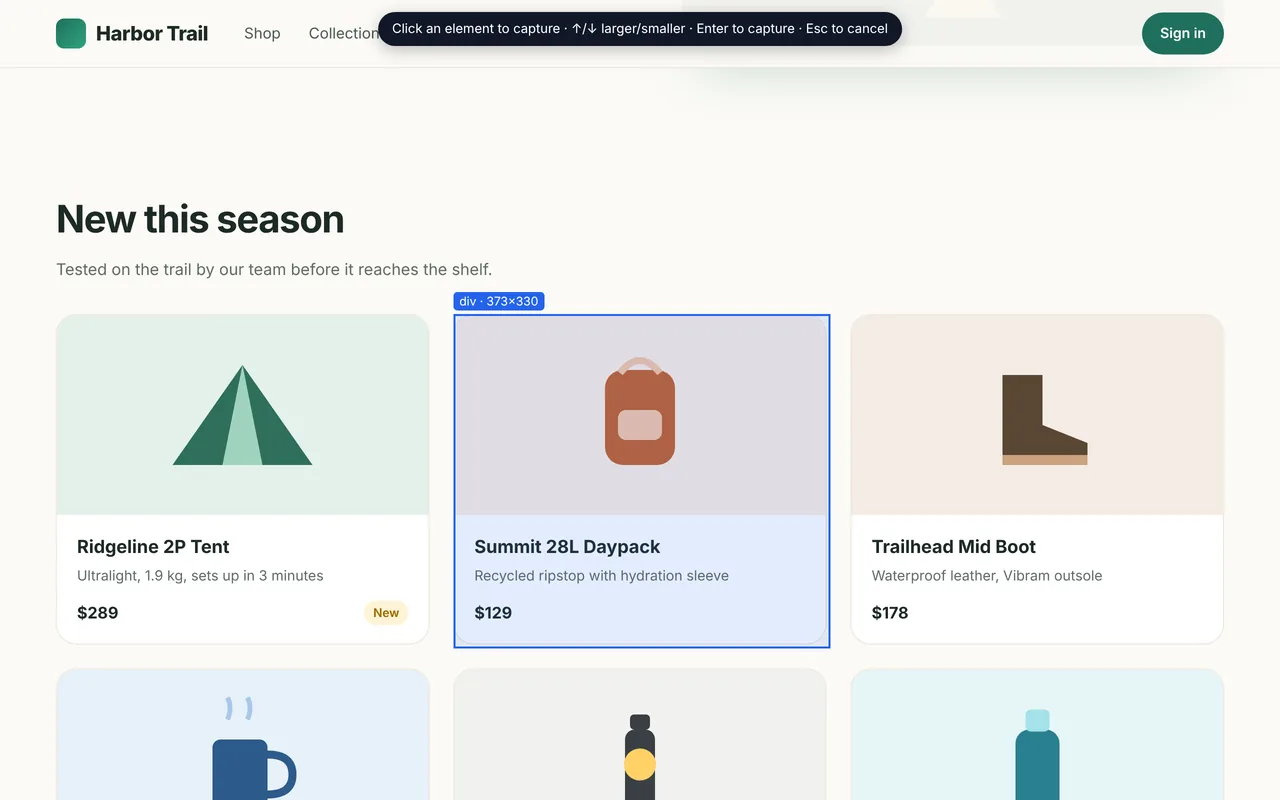
| Element | One part of the page, even if taller than the screen | A chart, table, card, form or article body |
When full page is better
- You need proof of everything on a page (pricing terms, a published article, a landing page before a redesign).
- You’re reviewing a layout from top to bottom.
- You want a PDF of the page.
When visible area is better
- The issue is above the fold and context is enough.
- The page is infinite or extremely long and you only need the start.
- You want the fastest possible capture.
Element capture: the underrated option
Element mode lets you hover over the page and click the exact block you want. Use ↑ to grow the selection to the surrounding container. Because it scrolls when needed, a long table or article body is captured completely — and already cropped.
All four modes are free in DownloadFullPage. Start them from the popup, the right-click menu, or Alt+Shift+D (full page) and Alt+Shift+V (visible area).
Written by the team behind DownloadFullPage, a free full page screenshot extension for Chrome developed by Digital Suvidha Pvt. Ltd.. Instructions were checked against DownloadFullPage 1.0.0 and current desktop Chrome.