
Quick answer: capture the page with a full page screenshot tool, then save it as PNG for crisp text and interfaces or JPG for smaller files. With DownloadFullPage: click the icon › Capture Full Page › PNG or JPG. Very tall pages are saved in parts automatically so nothing is cut off.
Step by step
- Open the page in Chrome and wait until it has fully loaded.
- Start a full page capture (Alt+Shift+D with DownloadFullPage).
- In the preview, check the result at Actual size to confirm text is sharp.
- Click PNG or JPG.
PNG or JPG?
| Aspect | PNG | JPG |
|---|---|---|
| Quality | Lossless — every pixel kept | Lossy — slight artifacts around text |
| File size | Larger on photo-heavy pages | Usually much smaller |
| Best for | Text, UI, documentation, bug reports | Photo-rich pages, e-mail attachments |
In DownloadFullPage you can set the default format and the JPG quality (50–100%) in Settings. At 85–92% most people can’t see a difference on photos.
Getting a sharp image
On Retina and other high-resolution displays, each CSS pixel is drawn with two or more physical pixels. DownloadFullPage’s default Original resolution mode keeps all of them, so a page that is 1,280 pixels wide in the browser becomes a 2,560-pixel-wide image on a 2× display. Choose Standard in Settings if you prefer smaller files. Images are never upscaled — that would add size without adding detail.
What happens with very tall pages?
Browsers limit how large a single image can be. When a page is taller than roughly 16,000 output pixels, DownloadFullPage splits it into numbered parts (-part1.png, -part2.png…) instead of failing or cutting it short. If you need one document, export as PDF, which combines every part.
Name and organize your captures
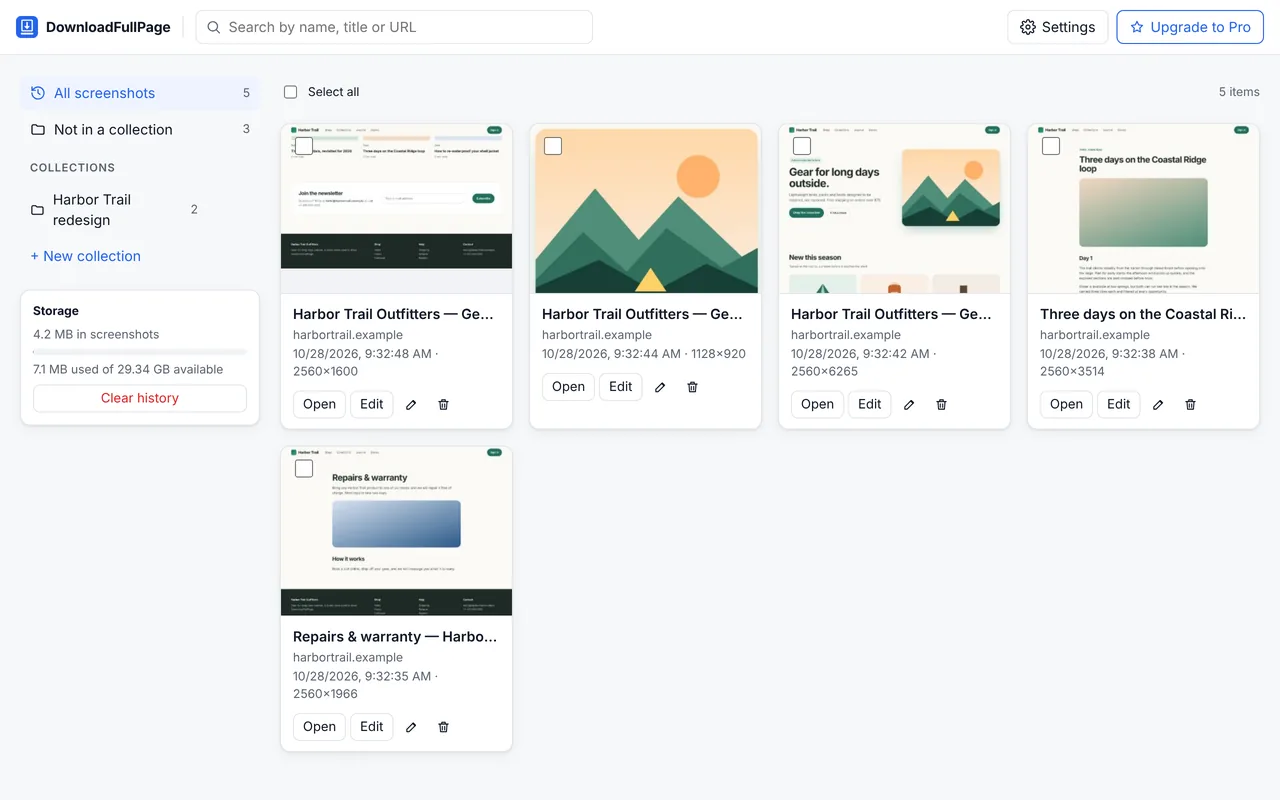
The default file name combines the website and time, for example example.com-2026-10-28-093145.png. You can change the pattern in Settings using {domain}, {title}, {date}, {time} and {project}.
Capturing just part of the page
Not every job needs the whole page. Use element capture to grab a single product card, chart or table at full resolution, or region capture to drag a box. See full page vs visible area for when to use which.
Written by the team behind DownloadFullPage, a free full page screenshot extension for Chrome developed by Digital Suvidha Pvt. Ltd.. Instructions were checked against DownloadFullPage 1.0.0 and current desktop Chrome.