
Quick answer: for a PDF that looks exactly like the page, take a full page screenshot with DownloadFullPage and click PDF in the preview. For a PDF with selectable text, press Ctrl+P / Cmd+P and choose Save as PDF. Both are free.
Option A: Screenshot PDF (looks exactly like the screen)
- Capture the page with Capture Full Page.
- Optional: click Edit to highlight or blur, then use the editor’s PDF button.
- In the preview, open the PDF menu and choose a size: A4, Letter or Legal (portrait), A4 landscape, or Full image for one long page.
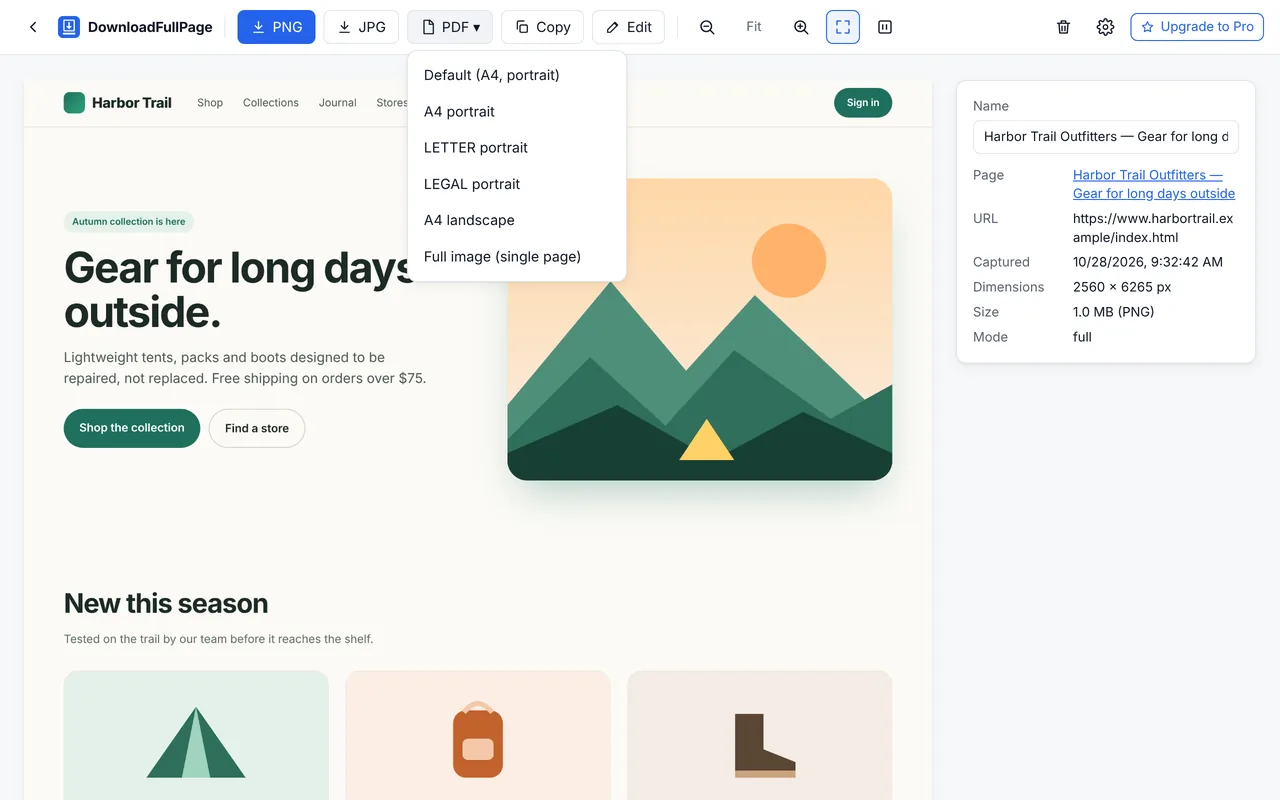
The screenshot is scaled to the page width and continued across as many pages as needed. Turn on URL and date stamps in Settings to print where and when it was captured on the last page — handy for records.
Option B: Print PDF (selectable text)
- Press Ctrl+P / Cmd+P.
- Choose Save as PDF as the destination.
- Under More settings, enable Background graphics and adjust margins and scale.
- Click Save.
Websites often provide a separate print style, so navigation, sidebars and colors may change or disappear. Links are usually clickable and text can be searched and copied.
Which one should you use?
| Need | Screenshot PDF | Print PDF |
|---|---|---|
| Exact visual record (design review, compliance, evidence) | ✔ | |
| Annotations, blur or highlights | ✔ | |
| Search and copy text | ✔ | |
| Smallest file for long articles | ✔ (usually) | |
| Web apps and dashboards | ✔ | Often poor |
Page breaks
In a screenshot PDF, page breaks fall at fixed heights, so a line of text can occasionally be split between pages. If that matters, choose Full image to avoid breaks altogether. Smarter page breaks are planned for the optional Pro upgrade.
Learn more on the screenshot to PDF page.
Written by the team behind DownloadFullPage, a free full page screenshot extension for Chrome developed by Digital Suvidha Pvt. Ltd.. Instructions were checked against DownloadFullPage 1.0.0 and current desktop Chrome.